Smart Call Center - connect your Voicenter user and call from Bambook
How to connect your Voicenter user to the Smart Call Center, call customers in one click, and have every call saved automatically to the card - with duration, recording and rep name.
The Smart Call Center connects Voicenter's telephony to Bambook. Call customers with one click from inside the system, and every call - inbound or outbound - is saved automatically to the customer card with its duration, recording and rep name. You'll find it in the Sales department under Smart Call Center.
Connect with your Voicenter user
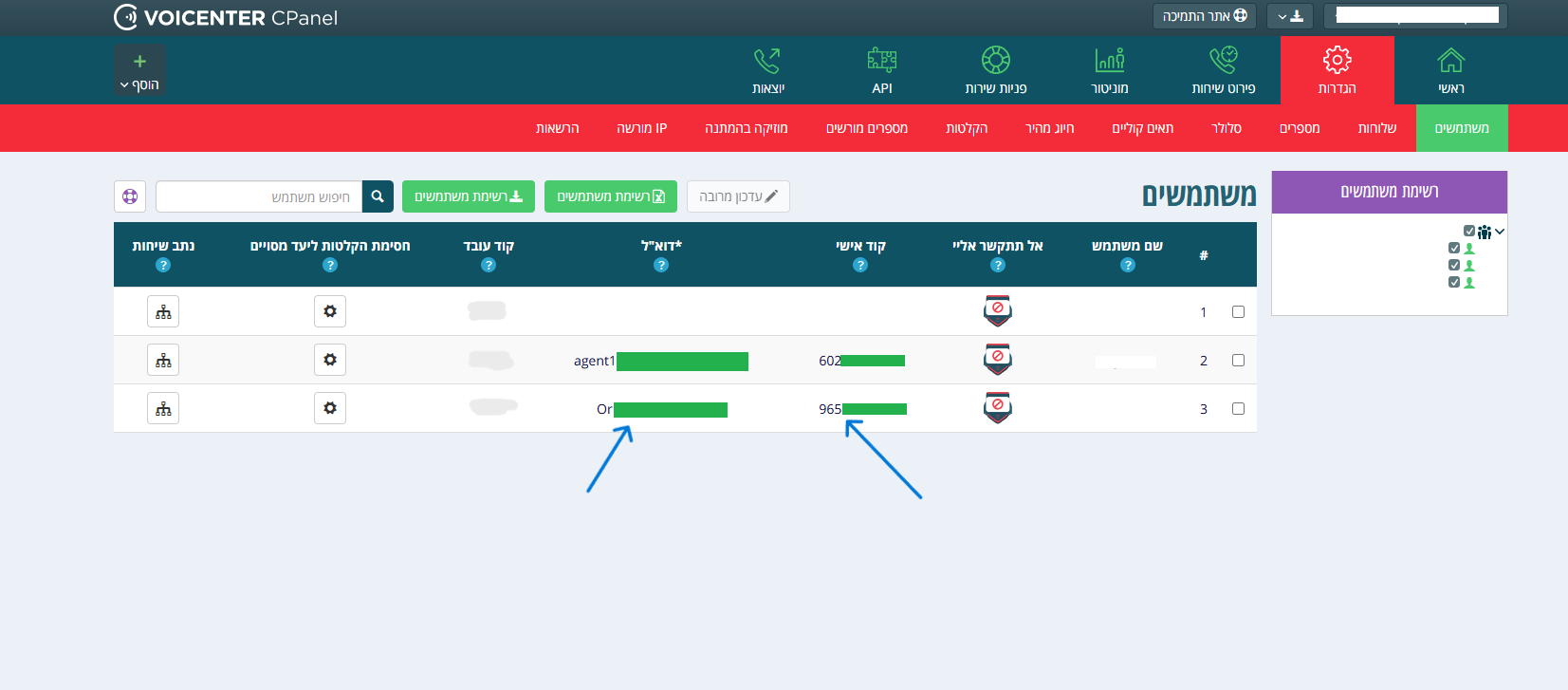
The first time, open the Smart Call Center screen and enter just two details - your Voicenter user's email and personal code. Everything else (the account code, your extension and rep name) is fetched automatically.
It's a one-time entry: once connected, the system remembers you and shows only your email and rep name.
Where to find the email and personal code: in Voicenter's admin at cpanel.voicenter.co.il/Users under Users - each user's email and personal code are listed there.
Install the Voicenter Softphone app
To talk on calls, install the Voicenter softphone app and keep it open and signed in while you work.
Clicking Call in Bambook opens the call in the softphone automatically and dials the customer right away - no need to answer yourself first.
Download the app: Voicenter Softphone
Call your customers
There are two ways to call: click the phone button next to a lead or customer in the contacts list, or use the dialpad - an on-screen keypad where you type a number and press call. Numbers are shown in a readable format, and every log row has call-back and copy-number buttons.
Every call is saved automatically
After each call, Bambook pulls the call details from Voicenter and saves them: the call appears in the call log and on the customer card, with its duration, a link to the recording and the rep name. No extra setup - it works in the background. A green phone icon marks an answered call, red a missed one.
Save an unknown number as a lead
Got a call from a number that isn't saved? From the log you can save it as a lead in one click. The lead is created with a note that it was added manually from the Smart Call Center and the rep who added it, and opens right away so you can complete the details.
See the customer card during a call
Clicking a lead or customer name opens a quick card with the details, notes, call history and recordings - so you always have the full picture in front of the customer, without leaving the screen.
Did not find an answer?
The Bambook support team replies within one business day. Tell us what you tried to do, on which screen, and attach a screenshot if you have one.